A Kling prompt works best as a shot description: what is in frame, the one thing that moves, what the camera does, the light and the sound, and what must not change. This guide gives you that formula and ten Kling AI prompts for Kling 3.0, sorted by use case, from a product push-in to a two-line dialogue scene. Each card lists the inputs and settings, the prompt, why it’s written that way and the first fix to try. Every prompt runs as written in ChatCut’s Video Gen with Kling 3.0 selected, which needs a paid plan and uses credits. A short section near the end covers Kling 4.0.
The prompts were written for this guide; we haven’t run them as a benchmark, and the one demo video on this page comes from a ChatCut Skill built on a different model. Treat each card as a starting brief and judge the clip you actually get.
Key Takeaways
- Write one shot per prompt: one visible action, one camera move, then light and sound.
- In ChatCut, Kling 3.0 has no negative-prompt field and always generates sound. Put exclusions and audio in the prompt as plain sentences.
- Let the image slots carry what words can’t: First Frame for the exact opening picture, Last Frame for the ending, Image Ref for a product or person that must stay recognizable. Up to 7 images in all.
- When a clip misses, change the one instruction that controls the problem and leave the rest alone.
How to write a Kling AI prompt
Kling’s own prompt guide breaks a prompt into five parts: subject, action, scene, camera, and lighting and mood. Running Kling 3.0 through ChatCut adds a sixth, because there is no separate field for things to leave out: what must stay the same, and what must not appear.
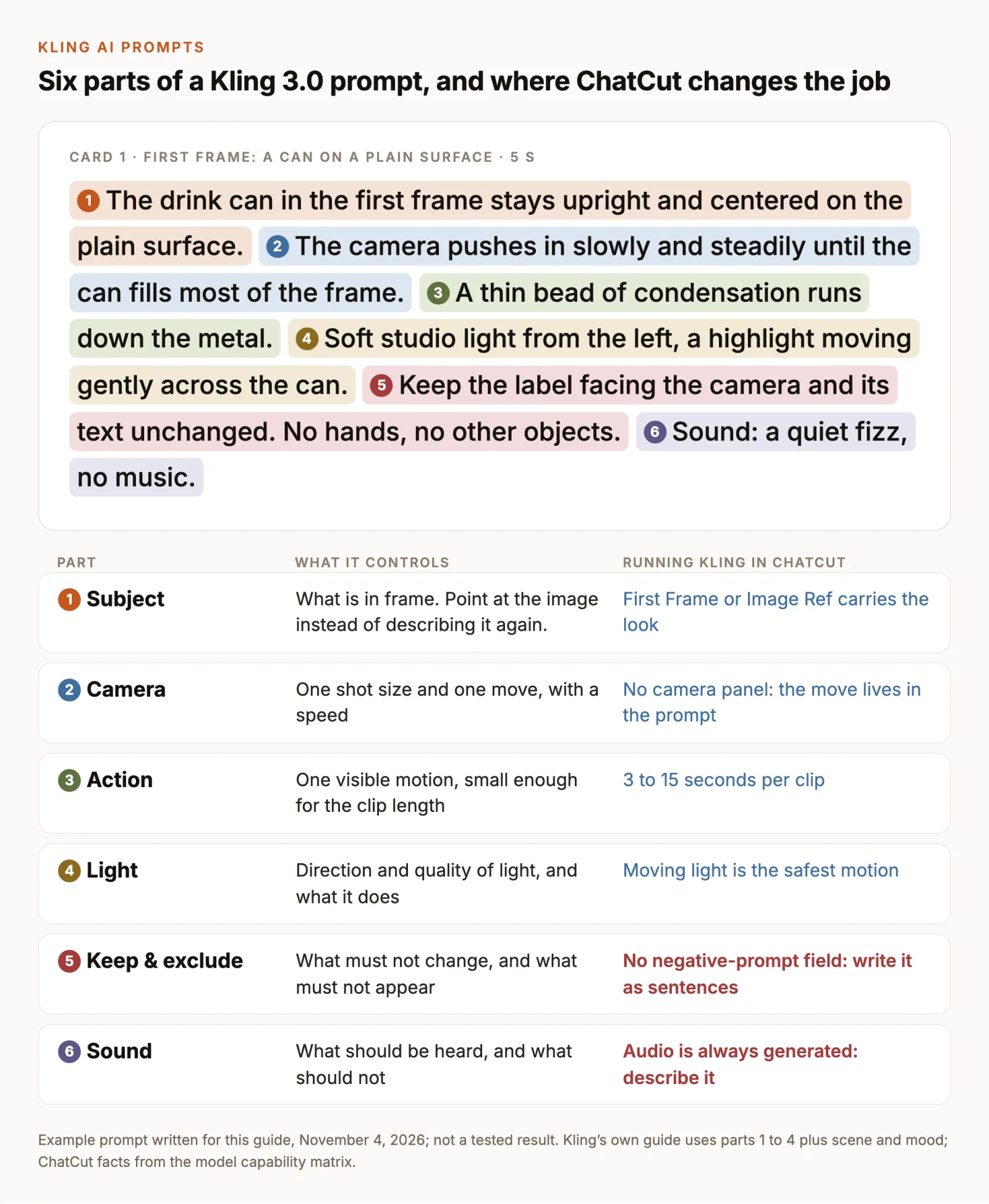
- Subject. Name it plainly with two or three defining details: “a matte silver drink can”, “an adult in a camel coat”. When an image supplies the subject, refer to it (“the can in the first frame”) instead of describing it again. The image already carries the look; your words are better spent on what happens.
- Action. One visible action with a speed: “steam rises slowly”, “turns their head once toward the window”. Several actions squeezed into five seconds tend to blur into each other.
- Scene. One sentence of place and time, or nothing at all when a First Frame already shows it.
- Camera. A shot size plus a single move: “locked close-up”, “slow push-in”, “lateral tracking shot”. ChatCut has no camera-control panel for Kling, so the camera lives in the prompt.
- Light and sound. Light direction and quality, then what should be heard. Kling 3.0 always generates native audio, so if you don’t describe the sound, the model chooses it.
- Keep and exclude. What must not change and what must not enter the frame: “The label stays facing the camera. No hands, no other objects.” These go in the prompt as ordinary sentences.
Kling 3.0 accepts prompts up to 2,500 characters, far more than one shot needs. The prompts below run 250 to 400 characters. A longer prompt isn’t safer: every extra instruction is one more thing the model can follow loosely.
Set up Kling 3.0 in ChatCut
- Open the AI panel and switch the composer to Video Gen.
- Select the model name below the composer and choose Kling 3.0.
- Open Video settings (the slider icon) and set Aspect ratio (16:9, 9:16 or 1:1), Resolution (720p or 1080p) and Duration (3 to 15 seconds, in whole seconds).
- Kling shows its image slots directly: First Frame, Last Frame and Image Ref. Upload the images a card asks for, or drag them in from My Assets.
- Paste the prompt, check the credit estimate beside Send, and select Send message.
- Follow the job in My Assets. When it finishes, drag the clip to the timeline or download it.
The AI video generation guide covers the same controls for every model in Video Gen.
Kling 3.0 costs 0.6048 credits per second at 720p and 0.8064 at 1080p, so a 5-second 720p draft is about 3 credits. Attaching Image Ref images switches to a lower rate (0.5376 per second at 720p). Each take is a separate job and a separate charge. Rates are from the credits policy; check the estimate in the editor before you send, and Credits history shows the final charge. Kling needs an eligible paid plan; a credit pack alone doesn’t unlock it.
If you’d rather type than click, Agent mode works too: start the message with “Use Kling 3.0, 5 seconds, 9:16”, attach the image and say which slot it goes in, then paste the prompt. Name the version. The Agent reads plain “Kling” as Kling 4.0, and it writes the final request itself, so use Video Gen when you need the exact text sent.
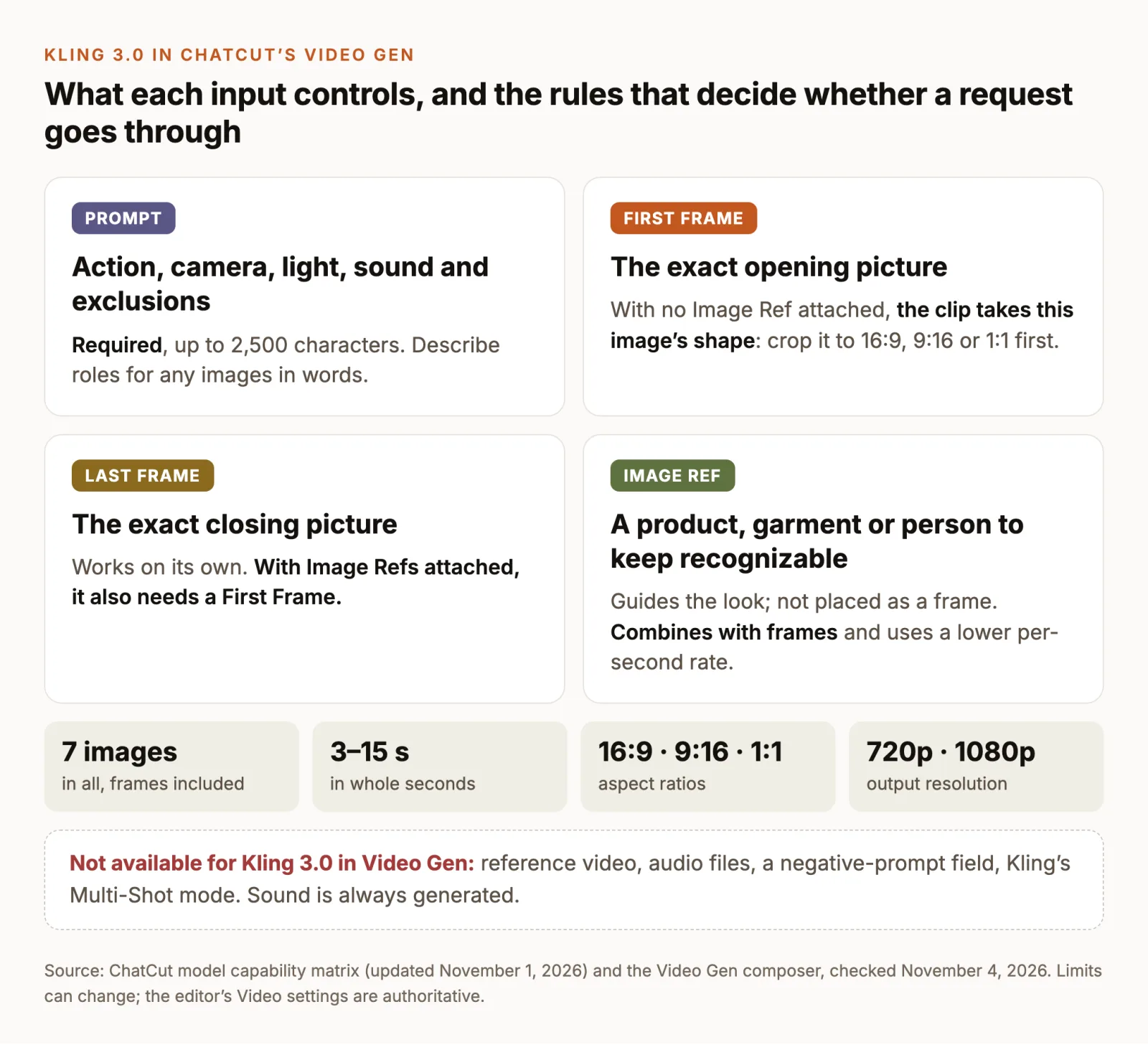
The rules that most often decide whether a request goes through, from the model capability matrix:
- Up to 7 images per request, First Frame and Last Frame included.
- A Last Frame can be used on its own. With Image Ref images attached, it also needs a First Frame.
- With a frame and no Image Ref, the clip takes the frame image’s shape. Crop your image to 16:9, 9:16 or 1:1 before you upload it.
- No reference video, no audio files, no negative prompt. Kling’s Multi-Shot mode isn’t offered in Video Gen, so one prompt makes one clip.
- Output is 720p or 1080p.
10 Kling AI prompts by use case
Each card gives the inputs and settings, the prompt, why it’s written that way, and the first thing to change if the clip misses. Swap the nouns for your own subject and keep the structure. Settings marked “draft” are the cheapest way to check the motion before you pay for 1080p.
1. Product hero shot from a packshot
Inputs: First Frame: a photo of your can or bottle on a plain surface · 5 s · 720p draft
Why it’s written this way: one camera move, one small secondary motion, and an explicit rule for the label. Lettering is easy to damage when the camera travels, so the prompt keeps the label square to the lens and the move short.
If it misses: if the label warps, shorten the travel (“pushes in slightly”) or lock the camera and let only the light move.
The demo below shows the kind of shot sequence a can ad builds from one packshot: a wide hero frame, a splash, a label close-up and a closing frame with fruit. It comes from ChatCut’s Sparkling Can Showcase Skill, which runs a Seedance workflow, so it isn’t Kling output. Use it as a shot list: each of those beats can be its own Kling prompt in the shape of card 1.
2. Food close-up with sound
Inputs: text only · 5 s · 16:9 · 720p draft
Why it’s written this way: food looks appetizing through small motion, so only the steam moves. The sound is spelled out because Kling generates audio for every clip, and a soundtrack it picks on its own may not suit a quiet close-up.
If it misses: if extra actions appear, such as a hand or lifting noodles, add “Nothing else moves” after the steam sentence.
3. Portrait with one small movement
Inputs: First Frame: a portrait you have permission to animate · 5 s · the clip takes the photo’s shape · for more one-photo motion prompts, see image-to-video prompts
Why it’s written this way: the smaller the movement, the less of the face the model has to redraw. A head turn reveals parts of the face the photo doesn’t show, so it is kept slight and ends in a hold.
If it misses: if the face changes during the turn, drop the turn and keep only the blink and the breathing.
4. Fashion: a garment that must stay exact
Inputs: First Frame: a full-length photo of the model wearing the jacket · Image Ref: a close or flat photo of the same jacket · 6 s · 9:16
Why it’s written this way: Kling is the model family in ChatCut that combines a First Frame with reference images in one request. The frame fixes the pose and the set; the Image Ref gives the model a second, closer look at the detail that matters most. The prompt names the reference’s job instead of assuming the model will work it out.
If it misses: if the jacket drifts, add a second Image Ref of the back or a detail. You still have room: two images used, seven allowed.
5. Interior that must not bend
Inputs: First Frame: a bright, level photo of the room · 5 s · 16:9
Why it’s written this way: straight lines make any distortion easy to see, so the prompt picks the gentlest move and says the lines must hold. The sound line matters for property: footsteps or chatter in an empty flat give the clip away.
If it misses: if lines bend, lock the camera and let only the sunlight move.
6. Travel establishing shot
Inputs: text only · 8 s · 16:9
Why it’s written this way: a lateral track parallel to the subject adds depth without asking the model to invent what’s behind the camera. The environment moves in small, natural ways that are easy to judge.
If it misses: if the cliffs shimmer or reshape, slow the move or make it a locked wide shot with only the grass and water moving.
7. Before and after with two frames
Inputs: First Frame: a closed gift box · Last Frame: the same box open with the product visible, shot from the same position · 5 s
Why it’s written this way: the Last Frame pins the ending, so the prompt only has to describe the path between two known pictures. Shooting both photos from the same position leaves the model one thing to animate: the lid.
If it misses: if the clip jumps or cuts, make the two images more alike: same framing, same light, same background.
8. Readable text on a surface
Inputs: text only · 5 s · 16:9
Why it’s written this way: Kling’s guide advises writing the exact words, where they sit and on what surface, and keeping the text short when it has to be read. Quoting the words in the prompt also makes them easy to check against the result.
If it misses: check every letter. If they still break, generate the shot without words and add the text as a title on the ChatCut timeline, where it stays sharp and editable.
9. Two-line dialogue with native audio
Inputs: text only · 8 s · 16:9
Why it’s written this way: each line is tied to a described speaker and a position in the frame, so there’s no doubt who says what. Kling’s guide lists Chinese, English, Japanese, Korean and Spanish for dialogue; naming the language removes one more guess. A fixed camera keeps both faces visible and steady while they speak.
If it misses: if the wrong person speaks or the lips drift, shorten each line and keep the positions (“on the left”, “on the right”) in the sentence that gives the line.
10. The same character in a new shot
Inputs: Image Ref: one clear front view of your character, plus a side view if you have one · no frames · 5 s · 16:9
Why it’s written this way: without a First Frame, the scene is free to change while the reference images hold the character. For a sequence, generate each shot as its own clip with the same references and cut them together on the timeline, where any single shot can be replaced.
If it misses: if she looks different from shot to shot, reuse exactly the same reference images every time and copy her description word for word into each prompt.
Choose one camera move per clip
Every camera move asks the model to show something the starting image or the previous moment didn’t. The more a move reveals, the more the model has to invent, and invented detail is where shapes bend and lettering breaks. Kling’s camera guide lists the standard vocabulary; here is how the moves compare when accuracy matters, from safest to riskiest:
- Locked or static reveals nothing new. Use it for labels, faces and rooms that must stay exact.
- Slow push-in reveals a little detail. Use it for product heroes, emphasis and interiors.
- Lateral tracking reveals the side of the scene. Use it for landscapes, walkers and counters.
- Tilt or pan reveals what’s above, below or beside. Use it for tall features and wide rooms.
- Pull-back reveals everything around the frame. Use it for context, and check the new edges.
- Orbit reveals the subject’s unseen sides. Keep the arc short and check the shape.
If a shot needs two moves, make two clips and cut between them.
When a Kling clip misses: what to change first
Resending the same prompt mostly gets you another version of the same problem. Find the instruction that controls it and change only that.
- A label or logo warps. Less camera travel, a shorter clip, or a locked camera. Add a close Image Ref of the label.
- A face changes. A smaller movement and a shorter clip. Add a clean front-view Image Ref of the same person.
- The camera drifts or does two things. Name one move. If it shouldn’t move, write “locked camera” or “the camera does not move”.
- Unwanted people or objects appear. Write the exclusion as a sentence: “No one enters the frame.”
- The sound is wrong. Describe the sound you want and what to leave out. If it’s still wrong, detach the clip’s audio and delete or replace it.
- Motion looks rushed or smeared. Fewer actions, or more seconds for the same action.
- The ending isn’t what you pictured. Add a Last Frame instead of describing the ending.
- The clip is cropped or the wrong shape. Crop the First Frame image to 16:9, 9:16 or 1:1 before uploading it.
- The request fails. Read the error. Common causes: a prompt over 2,500 characters, more than 7 images, or a Last Frame without a First Frame while Image Refs are attached.
Two limits no wording fixes. A single clip can’t run longer than 15 seconds on Kling 3.0, and generated audio is never guaranteed to follow a sound instruction exactly, so listen to every clip before you use it.
Kling 3.0 or Kling 4.0 for these prompts
ChatCut offers both. Kling 4.0 is the one the Agent picks when you ask for “Kling” without a version. The Kling 3.0 page covers access; here is what changes in the prompt, from the capability matrix:
- Length and shape. Kling 4.0 makes clips of 3 to 30 seconds and adds 21:9. Kling 3.0 stops at 15 seconds and 16:9, 9:16 or 1:1.
- References. Kling 4.0 takes up to 10 images plus up to 5 reference videos, which can guide motion, style or a character. Kling 3.0 takes images only, 7 in all.
- Naming inputs. Kling 4.0 expects you to name each input in the prompt as @first_frame, @last_frame, @image_1, @video_1 and so on. Cards 4 and 10 need that change on 4.0: “The jacket matches @image_1 exactly” instead of “matches the reference image”.
- Prompt length. Kling 4.0 allows up to 26,000 English characters; Kling 3.0 allows 2,500.
- Unchanged. Both always generate native audio, take no audio files and have no negative prompt, so the sound and exclusion sentences carry over as they are.
For prompts written for other models, our Seedance 2.0 examples cover reference roles and Seedance’s own inputs, and the AI video prompts guide collects text-to-video briefs by content type.