To make a testimonial video, choose one customer with one specific result, send them six open questions in advance, and record a 20-to-30-minute conversation in person or over a video call. Then cut it to 45 to 90 seconds that follow their story: the problem, how they use your product, and what changed. Get written permission for the uses you plan before recording, and the customer’s approval of the final cut before publishing. A phone, a clip-on microphone and an editor that shows a transcript cover the gear. Every word in the video has to be one the customer said and believes, so never use a generated person, an AI avatar or a cloned voice as a customer.
This guide covers the whole job, from choosing the customer to publishing the video. The editing steps are shown in ChatCut and work the same way in any editor with a transcript. The US endorsement rules quoted here come from the FTC and were checked on November 4, 2026. They’re a minimum, not legal advice, and other countries have their own rules.
How to make a testimonial video
- Choose one customer and one result. Someone whose situation looks like your next buyer’s, with a change they can back up.
- Prepare six open questions. Ask about what happened, not about what they think of you.
- Record remotely or in person. Lens at eye level, light on the face, a microphone close to the mouth.
- Edit to 45–90 seconds. Choose quotes from the transcript, cut in story order, add their name and captions.
- Get approval and publishing permission. The customer signs off on the cut and on where it will appear.
- Export and publish where buyers decide. Next to the question the story answers.
Choose one customer and one result
A testimonial video is a real customer describing their own experience in their own words. It persuades when it’s specific: one person, one problem, one result they can explain and back up. Several customers squeezed into one minute get a few seconds each, which is enough for praise but not for a story. Make one video per customer; you can cut a compilation from the finished videos later.
Look for a customer who:
- Has used the product long enough to have a result, not just a first impression.
- Resembles the buyers you want to reach: the same role, size of business or problem.
- Has already said something specific, in a support thread, a review or a renewal call. That’s your clue to the story.
- Can speak firsthand about the result. A manager who saw a report is weaker than the person whose week changed.
When you ask, explain where the video will appear, roughly how long it will be, and that they’ll approve the final cut before anything is published. Offer a short call to walk through the questions. If you’re giving anything in return, such as a discount, a gift, a payment or free months, decide now: under the FTC’s Endorsement Guides, a connection like that generally has to be disclosed in the video itself. Employees and the founder’s friends count as connections too.
Prepare six open testimonial questions
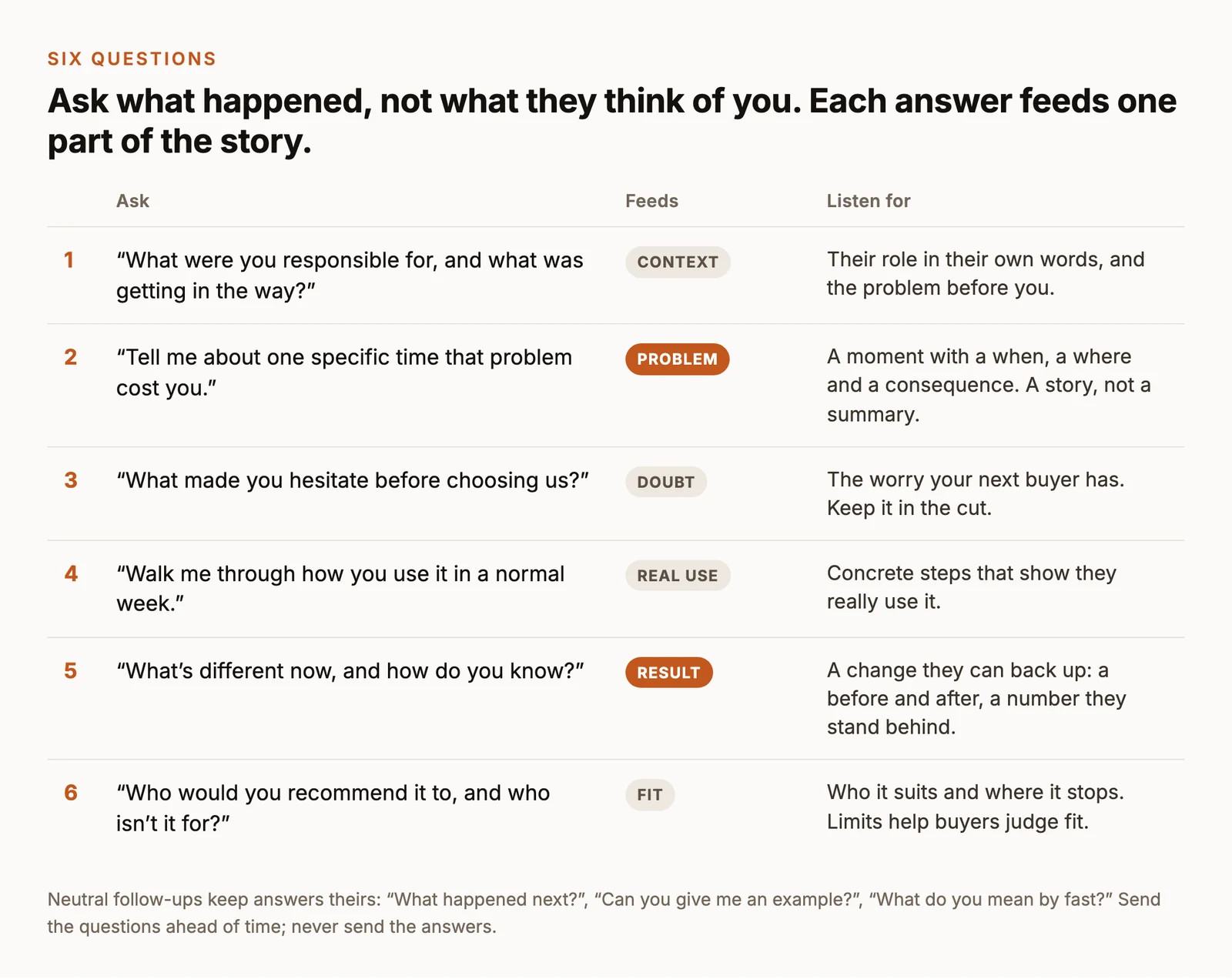
The questions ask about events, not opinions. “What do you like about us?” invites general praise that sounds the same in every testimonial. “Tell me about a specific time that problem cost you” gets a story with a when, a where and a consequence, which is what a viewer remembers. The doubt question matters as much as the result question: the worry the customer had before buying is usually the one your next buyer has now.
Keep follow-ups neutral, so the answers stay theirs:
- Leave a pause. People often add the most useful sentence after a second of silence.
- Ask for the next step: “What happened then?”
- Ask for an example: “Can you show me what that looked like?”
- Ask what a word means: “When you say faster, faster than what?”
- Ask how they know. If they mention a number, ask where it comes from. A result they can’t explain shouldn’t be in the video.
Avoid leading questions such as “Would you say it saved you hours every week?” They put your words in the customer’s mouth, and under the FTC’s guides a claim made in a testimonial needs the same evidence as if you’d made it yourself. Send the questions a few days ahead, but don’t send a script to read: read answers sound read. For deeper interviewing technique, our article on interviewing for documentary covers building trust and drawing out stories.
Record the interview remotely or in person
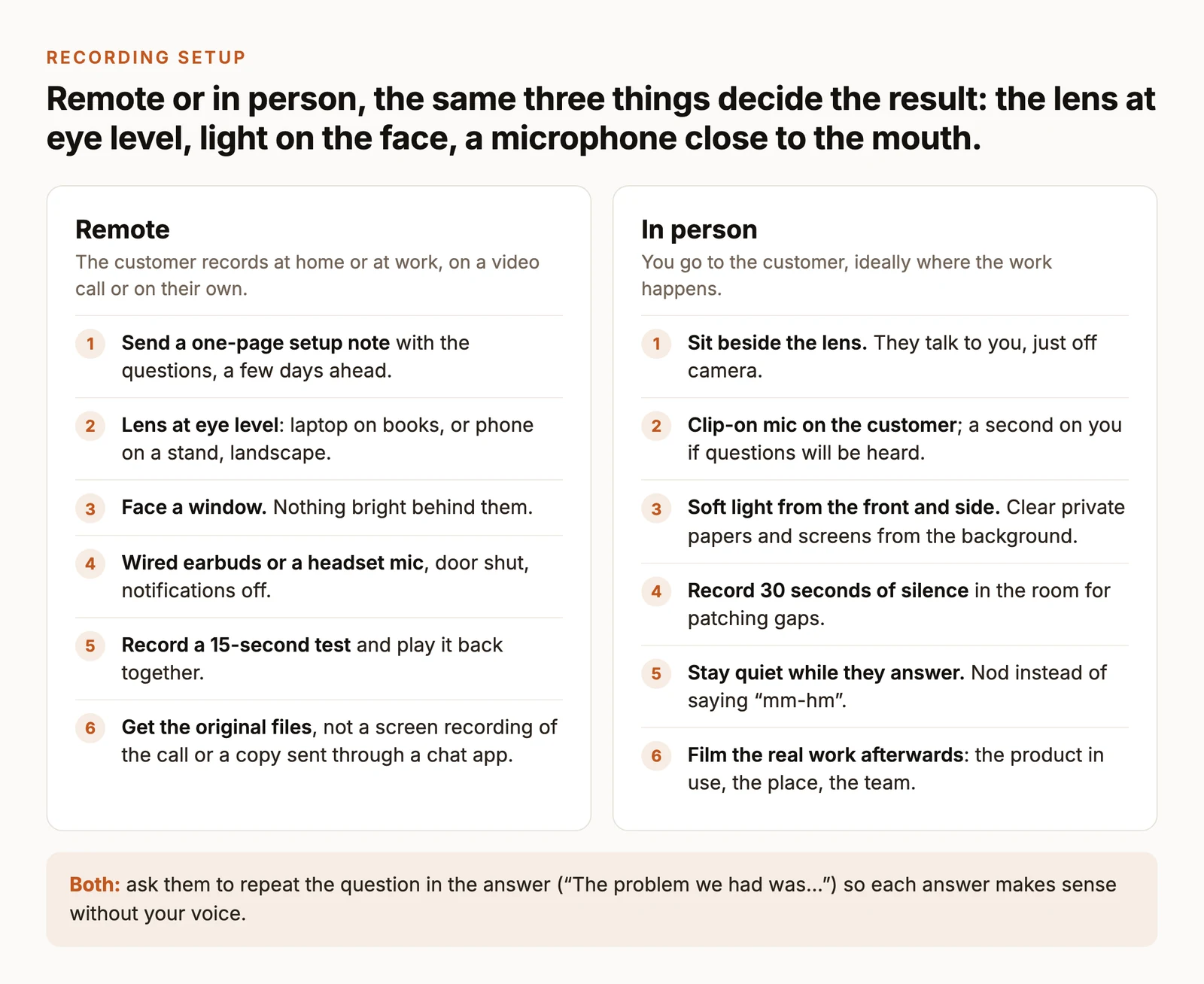
You can record a good testimonial without a crew. Three things decide most of the result in either setting: the lens at eye level, soft light on the face, and a microphone close to the mouth. Our talking head video guide covers each of them in more detail.
Record remotely
Remote is the easier ask for most customers: no travel, no visitors, twenty minutes from their own desk. Send a one-page setup note with the questions a few days ahead, then start the call ten minutes early to check the frame, the light and a short test recording together.
The detail that matters most is the file. A screen recording of a video call carries the call’s compression, and a clip forwarded through a chat app is usually compressed again. Use a recording tool that saves each participant’s video and audio separately at full quality, or ask the customer to record themselves on their phone at the same time and send you the original file through a file-sharing link. Our comparison of tools for recording and editing interviews covers the remote-recording options.
Record in person
In person, sit just beside the camera, so the customer talks to you and looks slightly off the lens. Clip a microphone on them; add a second for yourself only if your questions will be heard in the video. Record 30 seconds of the room’s silence at the start; it’s what you’ll use to patch small gaps later. While they answer, stay quiet: nod instead of saying “mm-hm”, which lands on top of their words.
After the interview, film the real work: the product in use, their workplace, their team, with permission from everyone in the frame. Those shots cover the cuts in the edit. Clear private papers, customer data and screens from both the background and the B-roll before you film.
In both settings, ask the customer to repeat the question in their answer (“The problem we had was…”), so each answer still makes sense once your voice is cut out.
Edit the interview to 45–90 seconds
A 20-minute conversation holds far more than one minute of video needs. The edit is a selection job: find the lines that tell the story, in the customer’s own words, and put them in an order a stranger can follow. Most of it can be done by reading.
Make a paper edit from the transcript
Start with the transcript, not the timeline. Read it through once and mark every line that does one of six jobs: the result, who they are, the problem, how they use the product, what changed (with its limits), and their recommendation. Note each line’s timecode. Then arrange the marked lines in story order and read them aloud with a timer.
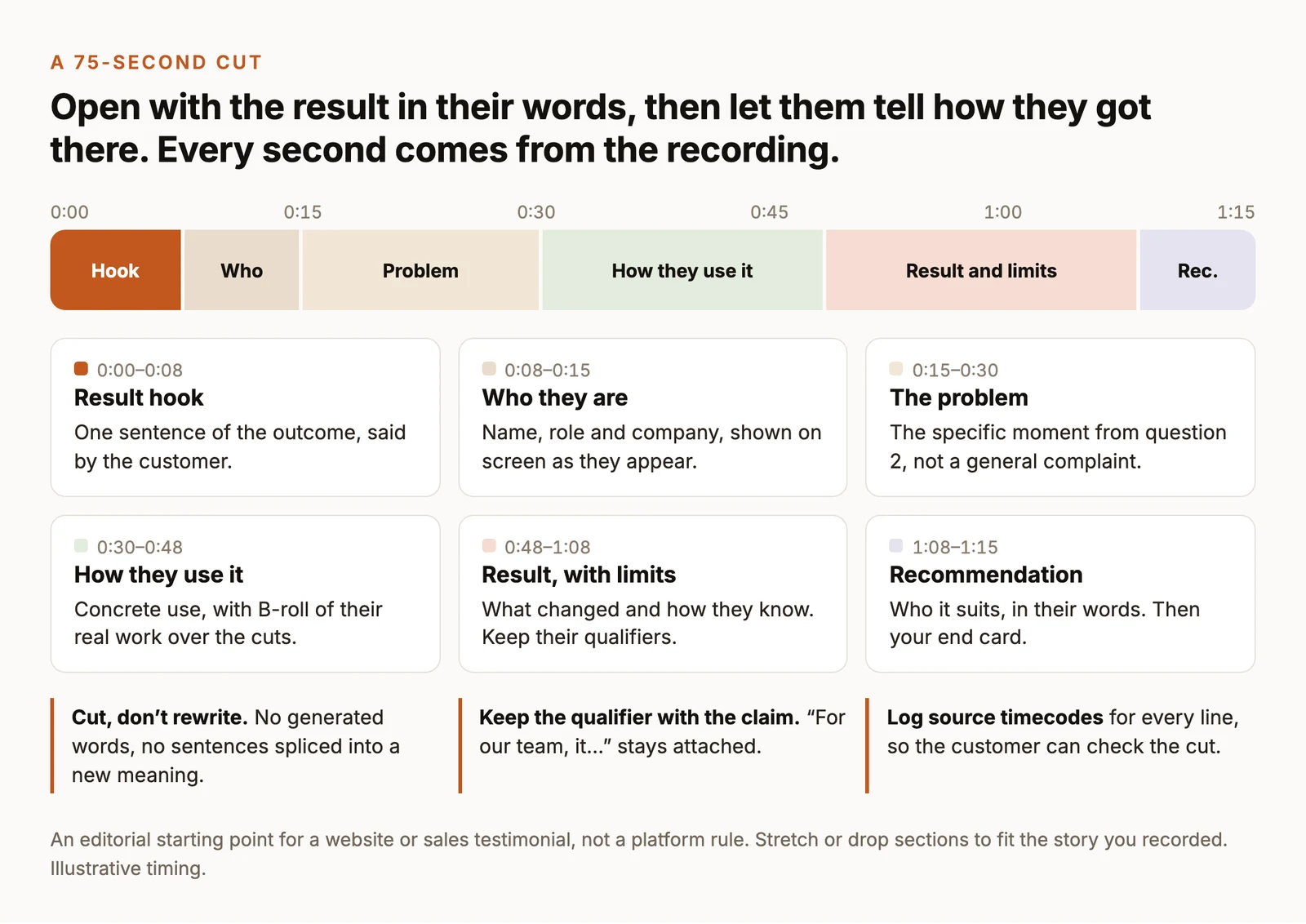
Opening on the result works because it tells the viewer why the next minute is worth watching, and it’s still the customer’s own sentence. If the strongest line is about the problem rather than the result, open with that instead.
In ChatCut: import the recordings with My Assets → Upload → Files… and place the interview on the timeline. If you recorded audio separately, select the camera clip and the audio file in My Assets, right-click and choose AI multicam sync to line them up by sound. Open Transcript (or Workspace → Transcript if it’s hidden), select the words you don’t need and press Delete; ChatCut cuts that range from the timeline and leaves your source files untouched. In Clip view, drag a paragraph to move its clip into story order.
On a long interview, you can ask the agent for the first selection and review it instead. Type @ in the chat box and pick your clip in place of @interview:
Agent requests use credits. Treat the result as a first draft: play every cut against the original recording and check the timecode list before you go further.
Cut, don’t rewrite
Editing a testimonial means choosing and shortening, never changing what the customer meant. The FTC’s guides allow an endorsement to be presented in other than the endorser’s exact words, but never out of context or reworded in a way that distorts their opinion or experience. A customer speaking on camera is heard in their own words, so the edit has to keep those words meaning what they meant. In practice:
- Keep the qualifier with the claim. “For our team, it cut the weekly report to an afternoon” must not lose “for our team”.
- Don’t splice words from different answers into a new sentence. A cut between two complete sentences is fine; a sentence assembled from fragments is a quote they never gave.
- Remove fillers sparingly. A few “ums” make a person sound like a person. Cut the ones that distract, and keep the pauses that give a line weight.
- Never generate or replace a customer’s words. Not with a cloned voice, not to fix a slip, not to add a line. If a sentence is unusable, cut around it or ask the customer to record it again.
Add their name, B-roll and captions
- Name, role and company go on screen the first time the customer appears, spelled exactly as they gave them to you in writing. In ChatCut, you can ask the agent for a lower third; it’s made as a motion graphic, which uses credits.
- B-roll goes over the cuts on the track above the interview, so their voice keeps playing underneath. Start each shot on the words it illustrates, and use footage of their real work rather than stock.
- Captions let people follow the story with the sound off. In ChatCut, turn them on with the Captions control below the Viewer, pick a style from its chevron, and correct names, product terms and numbers in the caption track’s Content panel. Correcting caption text doesn’t change what the customer said in the audio.
- Disclosures go in the video. If the customer received anything for taking part, or works for you, say so on screen and in the audio. The FTC’s guidance is that a disclosure only in the description is easy to miss.
Watch the whole cut with the sound off once. If the story still makes sense from the captions and the B-roll, the edit is working.
Get approval and permission to publish
Two permissions are easy to confuse. Agreeing to be recorded isn’t agreeing to every use of the recording. Get the recording permission before the interview, and confirm the publishing scope when the customer approves the final cut.
Agree the scope in writing
A release (also called a consent and release form) records what the customer agreed to. Have it drafted or reviewed by someone qualified for your country, and make sure it covers at least:
- Name, likeness and voice: that you may use their name, image and voice as recorded.
- Editing: that you’ll shorten and rearrange the recording, without changing what they meant.
- Where it will appear: your website, social accounts, sales materials, events, and whether paid ads are included. Paid ads are worth naming explicitly.
- How long, and how to withdraw: a time limit or review date, and what happens if they leave their company or stop using your product.
- The company’s approval, if the customer speaks for their employer or their logo, office or data appears on screen.
- Anything given in return, so it can be disclosed.
Clear everything else in the frame separately: music, stock footage, other people in the background, and any screen showing someone else’s data.
Check the claims before it goes live
In the US, the FTC’s Endorsement Guides set the floor for customer testimonials:
- The testimonial must reflect the customer’s honest opinion and real experience as a user of the product.
- A claim made in a testimonial needs the same evidence you’d need to make it yourself.
- If the customer’s result isn’t what people generally get, the video should clearly disclose what people can generally expect.
- You can keep running the testimonial only while you have good reason to believe they still use the product, so check in at a review date.
The FTC’s answers to common questions add practical detail on disclosures in video, and its rule on reviews and testimonials prohibits testimonials that misrepresent whether the person exists or used the product.
Never generate a customer
Don’t use an AI-generated person, an avatar, an actor or a cloned voice in place of a real customer, and don’t present a generated presenter as someone who used your product. A testimonial’s only value is that a real person chose to say it; a generated one is a fake endorsement, which ChatCut’s usage policy prohibits. If a customer is happy to be quoted but not filmed, use their words as a written quote or an audio-only clip with their permission and approval.
Send the customer the final cut and the timecode list, and publish only after they, and their company where needed, approve it in writing.
Export and publish where buyers decide
Export a master you can come back to, then the versions each channel needs:
- The master. In ChatCut, use Export → Video and choose the resolution and frame rate. ChatCut Desktop renders on your computer at up to 4K, while exports rendered in the cloud from the web app go up to 1080p and, on the free plan, share a 60-minute total. Keep the project, so you can re-cut it when the customer’s title or your product changes.
- A subtitle file. Export → Subtitles → SubRip (.srt) gives you captions to upload wherever viewers can switch them on (export docs).
- A vertical cut for social feeds. Set Aspect Ratio → 9:16 below the Viewer and check that the customer’s face, the lower third and the captions all stay in frame and clear of the app’s buttons. A shorter cut built around one strong line often works better there than the full story.
Then put the video where the doubt it answers comes up. A testimonial about setup belongs next to the setup instructions; one about price belongs on the pricing page; one from a particular industry belongs in that industry’s sales emails, as a thumbnail that links to the video rather than an attachment. Measure plays, completion and clicks with your website or video host’s analytics; ChatCut edits the video but doesn’t track how it performs after you publish.