To upload a video to ChatGPT, select + in the message box, choose Add photos & files, pick the video and send it with a question. It works on Free and paid plans, but OpenAI says availability varies by platform, upload method and account, so the video may be offered in one app and missing in another. OpenAI also warns that ChatGPT may not analyze the whole video or interpret its audio accurately, so what you ask matters as much as the upload.
Below are the steps for chatgpt.com, the Mac and Windows apps, iPhone and Android, the limits OpenAI actually publishes, and fixes for the common failures. Everything was checked against OpenAI’s help pages on November 4, 2026. If you want ChatGPT to edit the footage rather than read it, that takes a connected editor; our guide to editing video with ChatGPT covers that setup.
Key takeaways
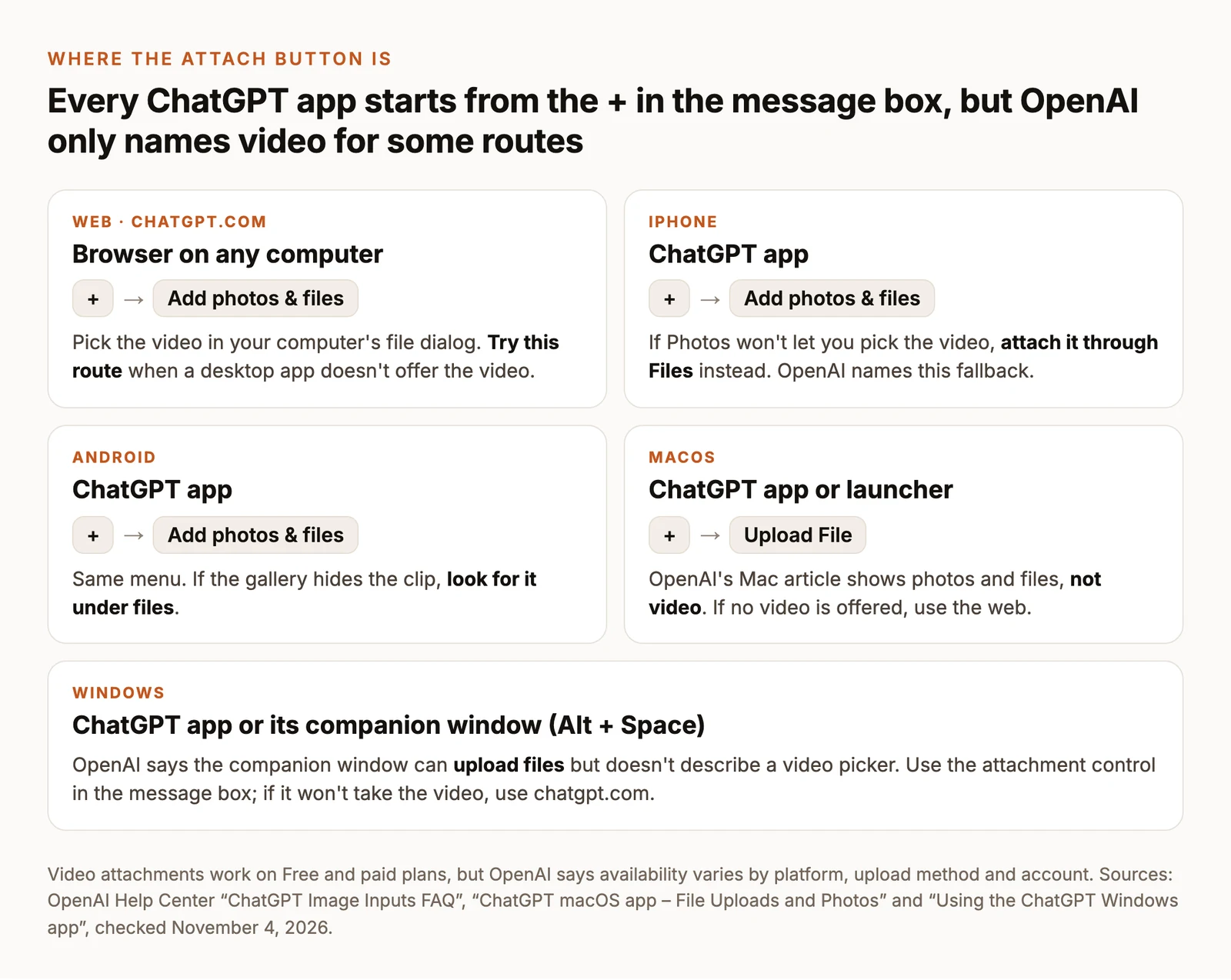
- The attach menu is + → Add photos & files on the web, iPhone and Android. The Mac app uses + → Upload File.
- On a phone, if Photos won’t let you select the video, attach it through Files instead. That’s OpenAI’s own advice.
- Each video counts as one file upload: up to 80 every three hours, or three a day on Free. OpenAI publishes no size, length or format limit for video.
- If the upload keeps failing, or the answer misses things, send a transcript and a few screenshots instead.
Can you upload a video to ChatGPT?
Yes. OpenAI’s Image Inputs FAQ says ChatGPT accepts video files as attachments through supported upload methods, including on the Free plan. The same page says video attachments are separate from still-image inputs and that ChatGPT may use tools to analyze them. It doesn’t name which apps offer video, so the figure below marks where OpenAI documents the route and where it only documents files in general.
Three other things look like sending a video but work differently:
- Live camera or screen sharing in Advanced voice sends what your phone shows right now, not a saved file. It’s covered below.
- Audio uploads, on paid plans only, take the soundtrack as its own file. An MP4 that contains video isn’t accepted as audio.
- A YouTube link pasted into a chat isn’t documented as giving ChatGPT the video. Our guide to whether ChatGPT can analyze videos covers the YouTube routes that are documented.
Before you upload
- Use footage you can share. How uploaded content may be used depends on your plan and your data controls. If the footage is confidential, check those settings before you upload.
- Trim to the part you’re asking about. OpenAI publishes no video limit, but a shorter clip uploads faster, uses the same single upload and is easier to check against the answer.
- Know your upload allowance. You can upload up to 80 files every three hours, or three a day on Free, and ChatGPT doesn’t show how many you have left.
How to upload a video to ChatGPT on the web
The web app at chatgpt.com is the route to try first, and the one to fall back on when an app doesn’t offer the video.
- Go to chatgpt.com, sign in and open a new chat.
- Select + in the message box, then Add photos & files.
- Choose the video in your computer’s file dialog. Wait until it shows as attached in the message box before you send anything.
- Type a specific request and send it. A first prompt that also tells you what ChatGPT couldn’t inspect:
- Check the answer against the video, starting with quotes, names and numbers. If whole sections are missing, the fixes below apply.
How to upload a video in the ChatGPT desktop apps
Mac
- Open the ChatGPT app, or open its launcher.
- Click + in the prompt window.
- Choose Upload File to pick the video from your files. The same menu has an option for your Photos library, which needs permission to access Photos.
- Add your question and send it.
OpenAI’s Mac upload article walks through this menu for photos and files and doesn’t mention video. If the app won’t attach your video, use chatgpt.com in a browser with the same account.
Windows
- Open the ChatGPT app, or press Alt + Space while it’s running to open the companion window.
- Use the attachment control in the message box to choose the video.
- Add your question and send it.
OpenAI’s Windows app article says the companion window can upload files but doesn’t describe a video picker. If Alt + Space does nothing, another app may already use that shortcut; you can change it under Settings → App → Companion window hotkey. If the video isn’t offered, use chatgpt.com.
How to send a video to ChatGPT from iPhone or Android
iPhone
- Open the ChatGPT app and start a chat.
- Tap +, then Add photos & files.
- Choose the video. If Photos won’t let you select it, OpenAI’s advice is to attach it through Files instead. To put a video in Files, open it in the Photos app, tap Share and choose Save to Files.
- Wait for the attachment to finish, type your question and send it.
Android
- Open the ChatGPT app and start a chat.
- Tap +, then Add photos & files.
- Choose the video. Android pickers vary by phone maker; OpenAI’s Files advice is written for Photos, but the same idea is worth trying: if the gallery won’t offer the clip, browse to it through the file option.
- Wait for the attachment to finish, type your question and send it.
Share live video instead
If you want ChatGPT to look at something happening now rather than a recording, use the camera in voice mode. According to ChatGPT Voice, video and screen sharing are available to eligible subscribers in the iOS and Android apps, and only in Advanced voice:
- Open Settings → Voice and select Advanced.
- Start a voice conversation with the Voice icon in the message bar.
- Tap the camera button to share live video, or open ••• and choose Share Screen. Tap the same control to stop.
The newer Live voice option doesn’t support video or screen sharing. Video and screen sharing have their own usage limits, and OpenAI says video clips from Advanced voice conversations are stored with the chat’s transcript for 30 days.
Video upload limits in ChatGPT
These are the limits OpenAI publishes on its file upload page, and the ones it doesn’t:
- Plans. Video attachments are available on Free and paid plans; availability varies by platform, upload method and account.
- How many. Each video counts toward your file-upload limit: up to 80 files every three hours, or three a day on Free. OpenAI may lower these at peak times, and failed upload attempts can sometimes count.
- Size and length. None published for video. The 512 MB cap applies to documents, presentations and audio files, about 50 MB to spreadsheets and 20 MB to each image. Don’t treat any of them as a video limit.
- Formats. OpenAI lists formats for documents, spreadsheets, images and audio, but not for video.
- Storage. Saved files share a cap of 25 GB per user and 100 GB per organization. Settings → Storage shows saved-file storage, which is separate from the upload allowance.
- Analysis. An accepted upload isn’t a full review. OpenAI says ChatGPT “may not analyze the entire video or accurately interpret its audio.”
Why can’t I upload a video to ChatGPT?
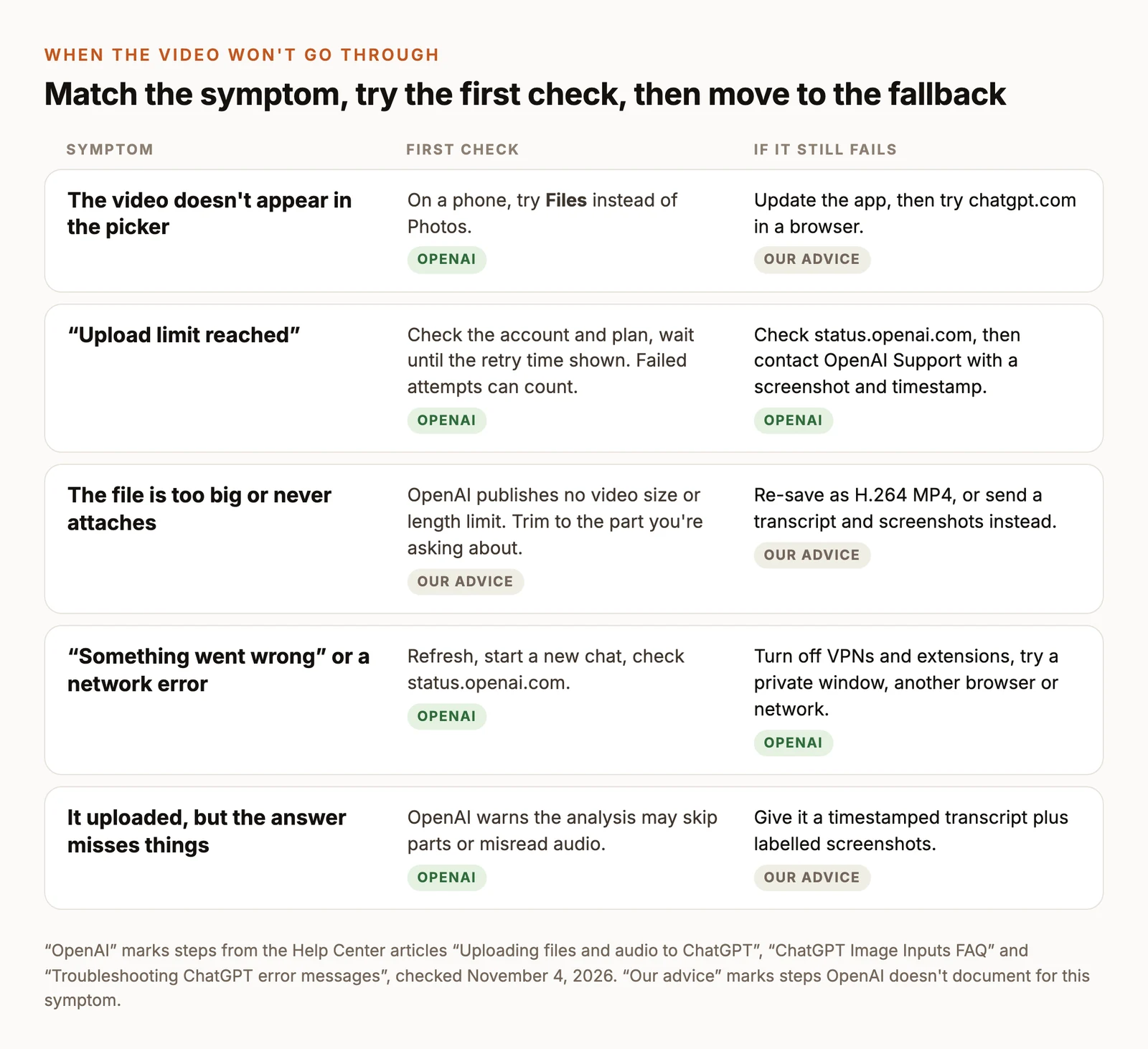
Match what you see to a row below. Steps marked OpenAI come from its help pages; the rest are our advice where OpenAI doesn’t document the symptom.
The video doesn’t show up in the picker
On iPhone, switch from Photos to Files, as OpenAI suggests. On Android, try the file option instead of the gallery. Update the app, and if the video still isn’t offered, attach it on chatgpt.com, where you pick it from your computer’s file dialog.
”Upload limit reached”
OpenAI’s upload troubleshooting gives this order:
- Confirm you’re signed in to the account and plan you expect.
- If the message shows a retry time, wait until then. Failed attempts can sometimes count toward the limit.
- On the web, Settings → Storage shows saved-file storage. It’s a separate cap from the upload allowance, so a nearly empty storage page doesn’t rule out the rate limit.
- Check OpenAI Status for incidents.
- If it continues, contact OpenAI Support with your account email, a screenshot, the time and time zone, your platform or browser, and the request ID if you have one.
The file is too large or never attaches
Because OpenAI publishes no video size or length limit, there’s no number to compare your file with. Trim the video to the section your question is about, or re-save it at a lower resolution, and try again on a stable connection. If it still won’t attach, send the words instead, as described in the next section.
”Unsupported file” or the video is greyed out
OpenAI doesn’t publish a list of supported video formats. Re-saving the file as an H.264 MP4, the most widely compatible combination, is a sensible step, though not a documented requirement. Don’t try to send a video MP4 through the audio route: OpenAI says WebM and MP4 files identified as video aren’t accepted as audio uploads. Export the soundtrack as MP3, M4A or WAV first if you’re on a paid plan.
The upload stalls, or you see “Something went wrong”
OpenAI’s error troubleshooting suggests refreshing the page or starting a new chat, checking status.openai.com, using a private window, turning off browser extensions, VPNs and secure DNS tools, and trying another browser or network. A hard refresh is Cmd/Ctrl + Shift + R.
It uploaded, but the answer is vague or wrong
That’s the limit OpenAI describes, not a failed upload. Ask ChatGPT which parts of the video it couldn’t inspect, then give it a timestamped transcript plus screenshots of the moments that matter. Our video analysis guide has a prompt that keeps its answer tied to evidence.
Send a transcript when the video won’t work
Most questions about a video are about what’s said in it, and text is the input ChatGPT documents best. Text uploads are available on Free and paid plans, and each text file can hold up to 2 million tokens. You can also check a transcript-based answer line by line.
You need a transcript first. ChatCut makes one from your video, and these steps work in ChatCut Desktop or the web app:
- Add the video. Open My Assets → Upload → Files…. For a video on your phone, Upload → From phone… shows a QR code and an upload link. Wait until the card finishes processing, then drag it onto the Timeline. See My Assets for every import option.
- Check the words. ChatCut transcribes the speech. Open Transcript (Workspace → Transcript if it’s hidden), click any word to jump to it, and fix misheard names with Edit text.
- Export the text. Turn captions on with the Captions control, wait until the caption track finishes transcribing, then choose Export → Subtitles. Plain text (.txt) gives you the words; SubRip (.srt) adds a start and end time to every line. The Transcript and Captions guide covers both.
- Send it to ChatGPT. Attach the .txt file. OpenAI’s file list doesn’t include SRT, so paste an SRT’s contents into the chat, or save a copy with a .txt extension. Add screenshots of any frames your question depends on, and say in your message which time each one shows.
Uploading, transcription, caption editing and export don’t use ChatCut credits. On a paid ChatGPT plan, you can also export the soundtrack from ChatCut Desktop (Export → Audio, as MP3 or WAV) and upload it to ChatGPT as audio.
Method and disclosure
ChatCut publishes this guide and makes the editor in the transcript section. The steps come from OpenAI’s Help Center articles “ChatGPT Image Inputs FAQ”, “Uploading files and audio to ChatGPT”, “ChatGPT macOS app – File Uploads and Photos”, “Using the ChatGPT Windows app”, “ChatGPT Voice” and “Troubleshooting ChatGPT error messages”, all checked on November 4, 2026. We didn’t record our own uploads in each app for this guide, so menu labels on your device may differ slightly; where OpenAI’s pages don’t mention video for an app, we say so. The demo clip comes from ChatCut’s Skill catalog.